Complete Guide to the Bi-Winning Trading Interface | Easy Navigation for Beginners
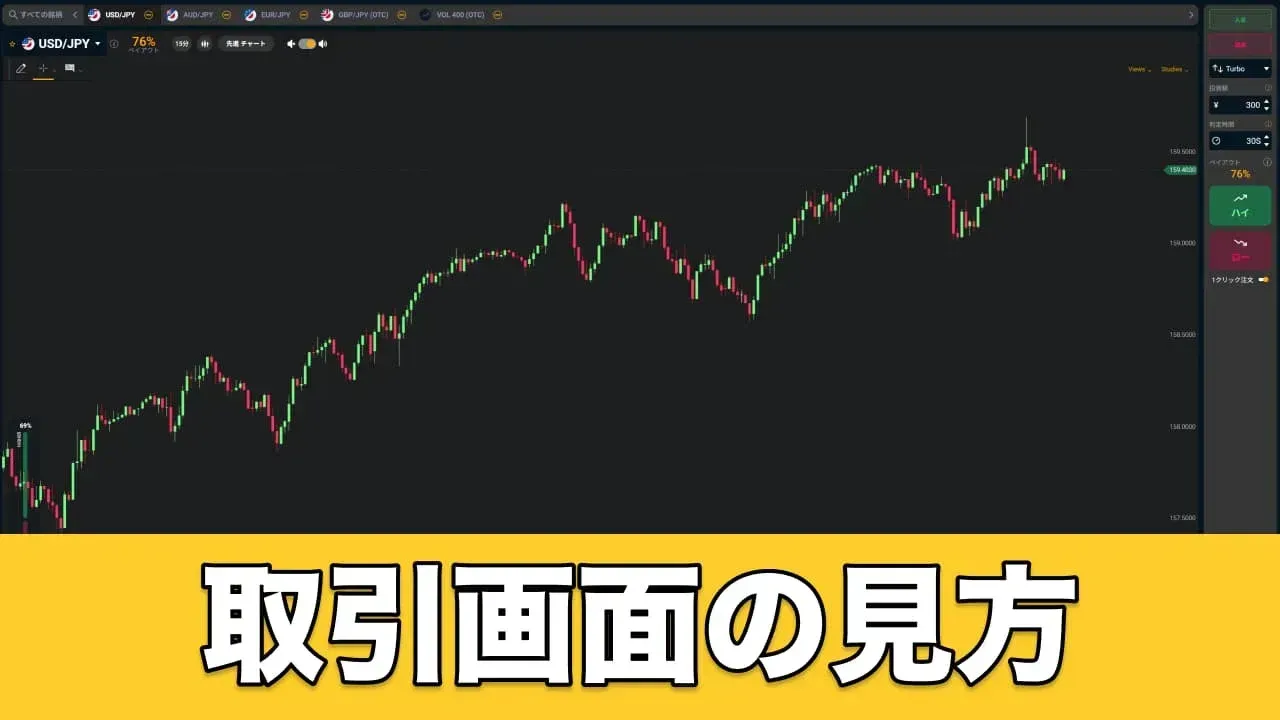
Why the Bi-Winning Trading Interface Is Easy for Beginners. When you first see a binary options trading screen, all the charts and buttons can look overwhelming. But Bi-Winning's trading interface is clean and simple...
Try a free demo now
Experience the real trading environment without using real money
Why the Bi-Winning Trading Interface Is Easy for Beginners

When you first see a binary options trading screen, all the charts and buttons can look cluttered and a bit intimidating.
But Bi-Winning's trading interface is clean and simple, making it easy to use even for beginners. All you need to do is follow three simple steps: "Select an asset → Set the amount → Choose High or Low." Once you understand the layout, you should rarely feel lost.
In this article, we'll walk you through the Bi-Winning trading interface step by step, following the actual trading flow. It's easiest to follow along with the demo screen open on your phone or PC.
Start by Trying the Demo Trading
Before we get into the details, there's something we want you to know: Bi-Winning offers a demo trading feature.
Click the "Quick Demo" button on the Bi-Winning official website's top page, and without registration, the demo trading screen will open. You can use virtual funds to explore the actual trading interface, so the fastest way to learn is to try it while reading this article.
We recommend getting familiar with the interface through the demo before using real money.
Understanding the Overall Trading Screen Layout
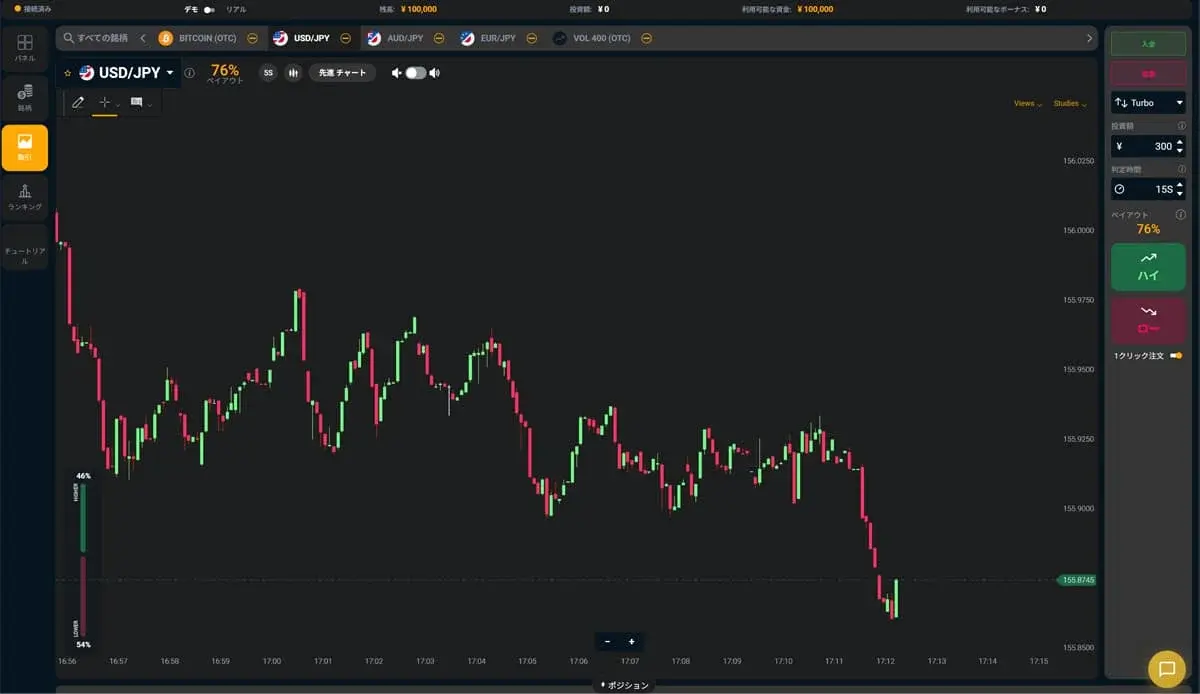
The Bi-Winning trading screen is divided into four main areas.

Screen Layout
Area | Position | What's There |
|---|---|---|
Asset Selection Area | Top Left | Currency pair name. Click to open the asset list |
Chart Area | Center | Price chart. Indicators and lines are also displayed |
Order Area | Right Side | Investment amount, expiry time, High/Low buttons, payout rate |
Position Area | Bottom | List of open and closed trades |
When actually trading, you'll mostly interact with the order area on the right. The chart area is for analysis, and you only touch the top left when switching assets.
How to Select Assets and Currency Pair List
How to Switch Assets

The currently selected currency pair (e.g., "USD/JPY") is displayed at the top left of the trading screen. Click on it to see the full list of available assets.
One thing to note is that grayed-out assets are currently outside their trading hours. Each asset has specific trading hours, and assets outside those hours are grayed out and cannot be selected.
Types of Tradable Assets
Bi-Winning offers a wide variety of tradable assets beyond just FX currency pairs.
- FX Currency Pairs: Major pairs like USD/JPY, EUR/USD, etc.
- Cryptocurrencies: Bitcoin, Ethereum, etc. (tradable on weekends too)
- US Individual Stocks: Apple, Tesla, etc.
- Stock Indices: Nikkei 225, S&P500, etc.
- Precious Metals: Gold, Silver, etc.
Unlike FX, which is only available on weekdays, cryptocurrencies can be traded on weekends as well.
How to Read Charts and Display Settings
Changing Chart Types

Bi-Winning supports five types of chart displays.
Chart Type | Features | Recommended Use |
|---|---|---|
Candlestick | Displays open, high, low, and close in a single bar | When in doubt, go with this. 90% of traders use candlesticks |
Line | Simple display connecting closing prices with a line | When you want a quick overview of the overall trend |
Area | Line chart with the area below filled in | Same as line, useful for viewing overall price movement |
OHLC Bars | Similar to candlesticks but with a different display format | Honestly, beginners don't need to use this |
Heikin Ashi | Smooths candlesticks by averaging to reduce noise | When you want to see the trend direction more clearly |
If you're a binary options beginner, candlesticks are the way to go. Most technical analysis methods are based on candlestick charts, so they'll come in handy when you study further.
Timeframe Settings
You can choose from the following chart timeframes:
Short-term: Tick / 1 min / 2 min / 5 min Medium-term: 15 min / 30 min / 1 hour Long-term: 2 hours / 4 hours / Daily / Weekly
Since binary options are short-term trades, 1-minute and 5-minute timeframes are most commonly used. However, jumping straight into 1-minute charts can be risky, so we recommend first checking the 15-minute chart to understand the overall trend before switching to shorter timeframes.
Two Chart Types to Choose From

On Bi-Winning's trading screen, you can freely switch between "Basic Chart" and "Advanced Chart" to match your trading style.
1. Basic Chart (Simple Operation)
Ideal for those new to binary options or who just want a quick look at price movements. With no unnecessary information, you can intuitively grasp entry timing.
2. Advanced Chart (Professional Analysis)
This is a feature-rich chart powered by "TradingView", used by traders worldwide. Choose this if you want to use indicators.
Mastering Indicators

Bi-Winning's trading screen comes with built-in technical indicators. Not having to open MT4 or TradingView in a separate tab is a nice convenience.
Key Indicators
Indicator Name | Type | General Use |
|---|---|---|
SMA (Simple Moving Average) | Trend | Understand the average price movement |
Bollinger Bands | Trend | Identify when prices are overextended |
Ichimoku Cloud | Trend | Analyze market direction using multiple elements |
RSI | Oscillator | Determine overbought/oversold conditions numerically |
MACD | Oscillator | Identify trend reversal points |
Williams %R | Oscillator | A contrarian indicator similar to RSI |
How to Add Indicators
To add an indicator, simply click the indicator icon at the top of the chart area and select the one you want from the list. You can also customize parameters (such as period) to your preference.
Chart Analysis with Line Drawing Tools
A common part of chart analysis is drawing horizontal lines such as support lines and resistance lines. Bi-Winning's trading screen includes line drawing tools for this purpose.
Available Line Drawing Tools
- Horizontal Line: Used for drawing resistance and support lines. It's useful to draw these at price levels where you expect a bounce.
- Segment (Line Segment): Used for drawing trend lines. Connect swing lows or swing highs to visually confirm the trend direction.
How to Delete Lines
When you want to delete a drawn line, click on the line and a trash can icon will appear. Just click it. Since you can easily remove lines even if drawn by mistake, feel free to draw and delete repeatedly.
Understanding the Order Area

The order area on the right side of the trading screen is where you'll spend most of your time on Bi-Winning. Let's go through what's displayed from top to bottom.
Trade Types: "Turbo" and "High/Low"
Bi-Winning offers Turbo Trading and High/Low Trading — two types of trades.
When you switch trade types, the available expiry time options change completely. Selecting Turbo gives you 30-second and 45-second short-term options, while High/Low offers 1 minute and longer timeframes.
Investment Amount Settings
Below the trade type, you'll find the investment amount input field.
- Minimum Investment: 500 JPY (200 JPY for Turbo)
- Maximum Investment: 200,000 JPY
- Total Position Limit: 5,000,000 JPY
- Adjustment Method: "+" and "-" buttons in 500 JPY increments. Direct input is also available
Important Note About One-Click Trading
Bi-Winning has a one-click trading feature, which is ON by default.
When this feature is ON, pressing the High/Low button immediately confirms your entry without any confirmation screen. While this is great for experienced traders who value speed, it can lead to accidental orders for beginners.
Beginners Should Turn It OFF
Honestly, until you're comfortable with trading, we strongly recommend turning one-click trading OFF. With it OFF, a confirmation screen appears after pressing High/Low, helping you catch mistakes like "Oops, wrong amount" or "Wrong asset."
Once you're comfortable and find the confirmation screen bothersome, you can simply turn it ON at that point.
Checking Positions and Early Sell-Out
Open Positions (Active Trades)
Your active trades appear in the Open Positions list at the bottom of the trading screen. Here you can check in real-time which assets you've invested in, how much, and your current profit/loss.
Closed Positions (Completed Trades)
Trades that have reached their expiry time and have results are moved to Closed Positions. Check here when you want to review your trade history. It's also useful for analyzing your win/loss patterns.
About Early Sell-Out
Bi-Winning allows early sell-out up to 30 seconds before expiry.
This is a surprisingly useful feature. For example, if the market starts moving against your prediction after entry, selling early before expiry can minimize your losses. Conversely, if you think your winning position might reverse, taking profits early is also an option.
However, the refund amount at early sell-out varies depending on the situation at that moment. Keep in mind that you may not always get a favorable price.
Summary: Bi-Winning's Trading Interface Is Beginner-Friendly
Basic trading steps:
- Select an asset
- Set the investment amount
- Choose the expiry time
- Check the payout rate
- Choose High or Low and enter the trade
That's all there is to it.
The trading screen comes with built-in indicators and line drawing tools, so you can analyze charts directly on the screen without needing separate charting software. Start with the Bollinger Bands + Williams %R combination we mentioned earlier.
Things beginners should do first:
- Get familiar with the interface through demo trading (no registration required, use "Quick Demo" on the official site)
- Turn off one-click trading (to prevent accidental orders)
- Learn how to use the early sell-out feature
Demo → Small amounts → Full-scale trading once comfortable. Please follow this order.
If you don't have an account yet, start by trying the "Quick Demo" on the Bi-Winning official website to experience the trading interface.
Experience the Bi-Winning trading platform risk-free
Try the Bi-Winning trading platform for free right now. No registration required to try High/Low trading. Your demo account comes with 100,000 JPY in virtual funds.
Try a free demo now
Experience the real trading environment without using real money
Company Information
Providing a safe, secure, and comfortable trading environment for all investors.
| Company | Alpha Options LLC |
| Location | Euro House, Richmond Hill Road, Kingstown, St. Vincent and the Grenadines |
| Support Hours | 10:00 – 17:00 (JST)Excluding weekends, holidays, and year-end closures |
| Business Succession | Succeeded from BET GLOBAL MARKET INC. on February 7, 2025 |
| Contact | Contact Us |
| Official Twitter | https://x.com/BIWINNING1 |
関連記事

Bi-Winningのサインツール設定方法:MT5への設置手順を画像つきで解説
Bi-Winningのサインツール設定方法を、提携先EdgeGraph FXの口座開設からMT5への設置・表示まで画像つきで解説。IndicatorsフォルダへのファイルのいれかたやM1の設定、表示されないときの対処まで初心者の方向けにまとめました。

How to Deposit via PoiTouch on Bi-Winning: From DEPOT Purchase to Confirmation
We explain how to complete a PoiTouch deposit on Bi-Winning in an easy-to-follow, two-stage process starting with a DEPOT purchase — 11 steps in total. This beginner-friendly guide covers the essentials (a 5,000-yen minimum and instant crediting), things to watch out for when buying multiple DEPOTs or if your deposit isn't reflected, and a comparison with other deposit methods.

What to Watch Out for When Trading During Economic Indicator Releases | Key Precautions for Beginners
When economic indicators are released, the market can swing sharply, bringing risks you don't normally face, such as widening spreads and slippage. This article clearly explains what binary options beginners should watch out for when trading around indicator releases, along with concrete steps to reduce risk.